A Nutrition Facts label is the black-and-white panel the FDA uses on most packaged foods in the United States. To make one, you gather serving size and nutrient numbers, choose an FDA layout that fits your package, then set type and lines so the panel matches that layout. This guide is the step-by-step version for a nutrition facts label maker — you type the numbers; the tool draws the panel. It does not weigh a recipe or file anything with the FDA.
Short answer
Get (or calculate) per-serving calories and nutrients, pick Standard Vertical unless your package is tiny or the product is mostly empty of mandatory nutrients, fill the live preview, add ingredients and your business name if you need them on pack, then download a print-ready PDF when you are ready to print. Preview is free. A clean PDF is $4 per download unless you subscribe.
What you need before you start
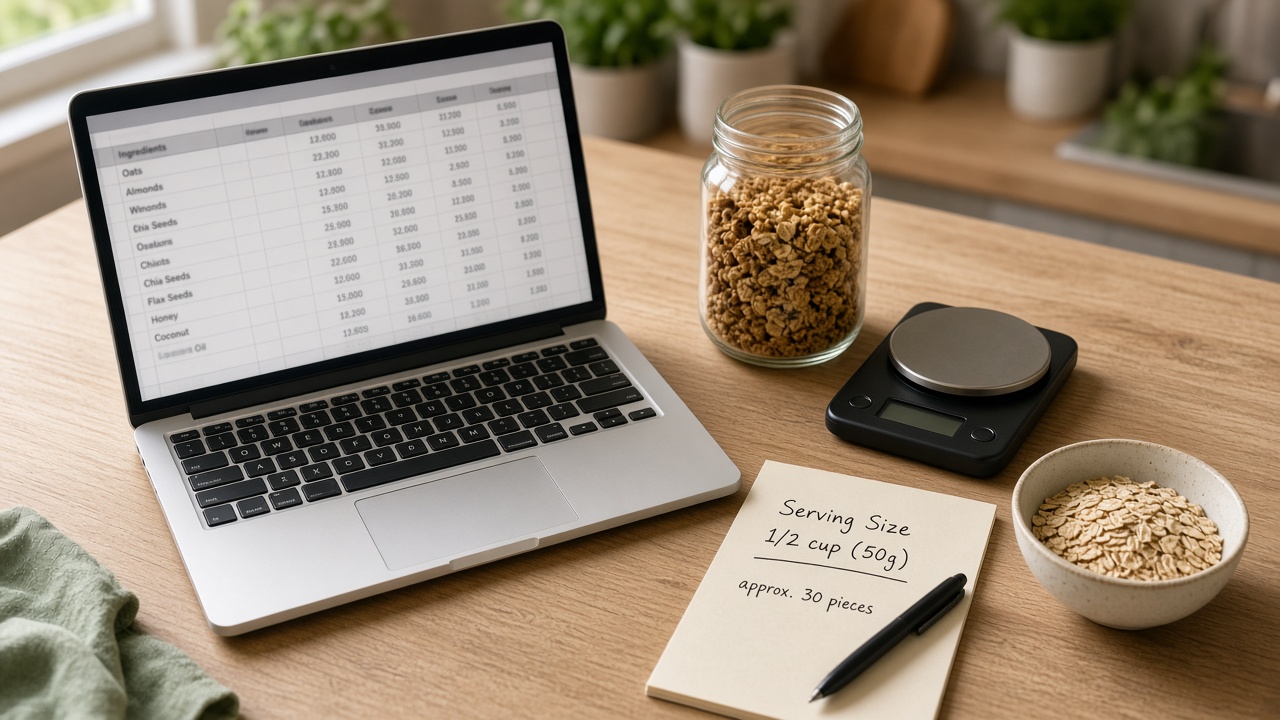
- Servings per container and a household serving size (for example 2/3 cup (55g)).
- Calories and the core nutrients: fat, sat fat, trans fat, cholesterol, sodium, carbohydrate, fiber, total sugars, added sugars, protein.
- Vitamin D, calcium, iron, and potassium with % Daily Value when you show them.
- Ingredient list in descending order by weight, plus a Contains: allergen line if any of the nine major allergens are in the food.
- Name and address of the manufacturer, packer, or distributor when that statement belongs on the same pack.
If you do not have numbers yet, read how to get numbers for your Nutrition Facts label and homemade food labels. USDA FoodData Central is a common starting point for recipe math. A lab or dietitian is the defensible option for retail claims.
Build the label in this tool
1. Open a format
Start with Standard Vertical — it is the grocery-store default. Switch later if the package is too small or the rules point you to dual-column, linear, tabular, infant, or bilingual.
2. Enter serving size and calories
Serving size is based on what people usually eat (FDA Reference Amounts Customarily Consumed), not a marketing portion. Calories sit large on the 2016 panel. Wrong serving size throws off every line below it.
3. Fill macros, then micros
Added sugars is its own line under Total Sugars. Vitamin D, calcium, iron, and potassium are the core micronutrients on the current vertical label. The preview redraws as you type so you can see overflow before you pay.
4. Ingredients, allergens, manufacturer
Toggle the extra block if those statements live next to the panel. Allergens are not a substitute for an accurate ingredient list.
Pick a format
- Standard vs simplified if the food is insignificant in most nutrients.
- Dual column if a multi-serving pack could reasonably be eaten in one sitting.
- Linear (or tabular) if the package face is too small for a vertical strip.
- English/Spanish bilingual if the pack copy is already two languages.
- Browse the full catalog of 13 layouts for infant, children 1–3, and variety packs.
Preview vs PDF download
The on-screen panel is a preview (watermarked). A print-ready PDF is a paid download — see what “free” means and pricing. You are responsible for the numbers and for whether that layout is the right one for your product. See the disclaimer.
Create a Standard Vertical label freeFAQ
Can I design this in Word or Canva instead?
You can, but the FDA panel has tight type, line weights, and order of nutrients. A dedicated maker is faster if you need the 2016 Nutrition Facts layout, including Added Sugars.
Does this calculate my recipe?
No. It only formats values you already have.
Is the PDF “FDA approved”?
No agency pre-approves your file. The layout is modeled on FDA 2016 rules. Accuracy and the choice of format stay with you.
General information, not legal advice. Reference: FDA, Changes to the Nutrition Facts Label.